How-to
How to Save and Share Your Tier List
Finished your tier list? Here’s how to save it, download it as an image and share it on social media, in chats or in documents.
By List Tier Maker Team Published
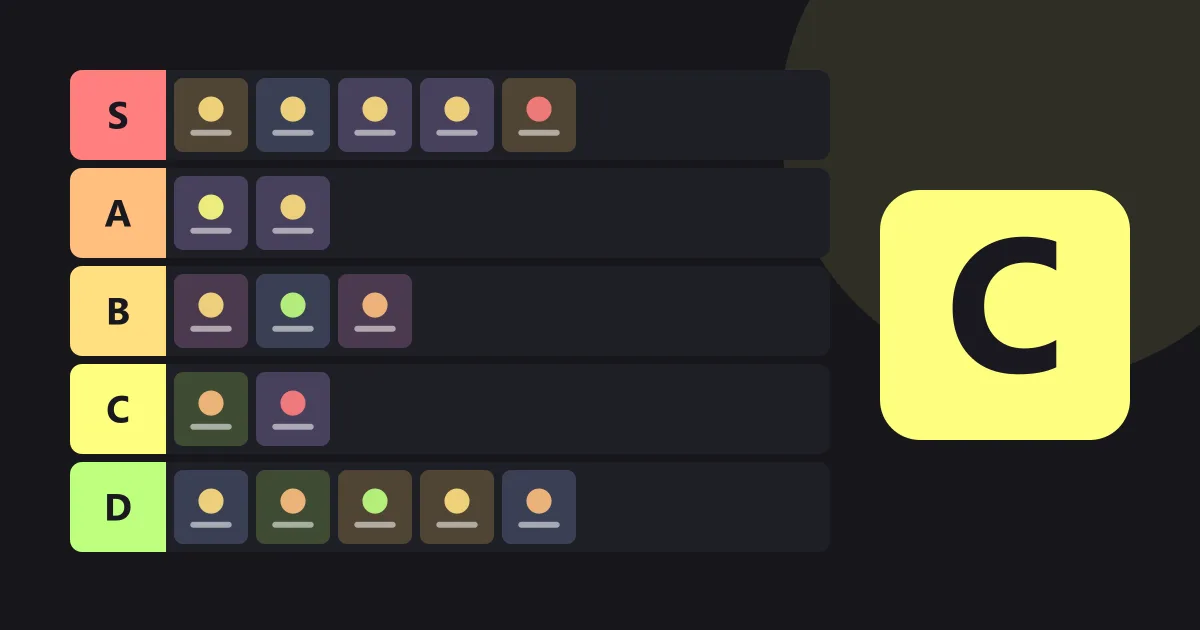
A tier list is made to be shared. Here’s how saving and sharing work in the tier list maker.
Automatic saving
While you work, your tier list is saved in your browser on your device. If you close the tab and come back later in the same browser, your list will be where you left it. There’s nothing to sign in to.
Two things to keep in mind:
- Saved lists live in one browser on one device. They don’t sync to your phone or another computer.
- Clearing your browser’s site data or using a private window will remove the saved list.
For anything you want to keep permanently, download an image.
Downloading a PNG
Select Download PNG above the board. The tool creates a high-resolution image containing your title, every tier with its color and all ranked items. Items still in the unranked area aren’t included, so the image shows only your finished ranking.
The file name is based on your list’s title, so give your list a descriptive title before downloading.
Sharing ideas
- Social media: Post the image with the question you were answering, for example “Pizza toppings, ranked by how happy I am to see them”.
- Group chats: Send the image and ask friends to make their own version.
- Documents and slides: Drop the PNG into a presentation or report — it works well for team priorities and comparisons.
- Classrooms: Students can submit their downloaded list as an image.
Keeping a copy before you start again
The New list button clears the board to start fresh. Download your current list first if you want to keep it, because only the latest list is saved in each language version of the tool.